Sign PDF Online (100% Local, Zero Uploads)
Draw, type, or upload a transparent signature, drag and resize it directly onto any PDF page with mouse or touch, and save a clean signed PDF inside your browser.
Transparent PNGs work best.
CleanPDFTools embeds your visual signature locally with zero uploads—ideal for single-party forms, leases, and W-9s. If a counterparty requires timestamped cryptographic audit logs, sequential routing, or automated signer reminders, use a dedicated e-signature platform.
Affiliate disclosure: External partner links may earn us a commission at no extra cost to you. CleanPDFTools web utilities remain free.
Most days, signing a PDF means putting your handwritten mark on a rental addendum, a freelance W-9, a school permission slip, or a vendor NDA and emailing it back. Yet many popular e-sign sites force you to create an account, upload the entire contract to their cloud storage, and either pay a monthly subscription or accept a free tier capped at a few envelopes per month.
Platforms like DocuSign and PandaDoc earn their price when you need multi-party signing sequences, automated reminders, identity verification, and a tamper-evident cryptographic audit certificate stored on a third-party server. If you are running enterprise sales contracts, those platforms are the right choice. When you only need to place your own signature onto a PDF quickly and privately, uploading a tax form or lease to a remote server is overkill.
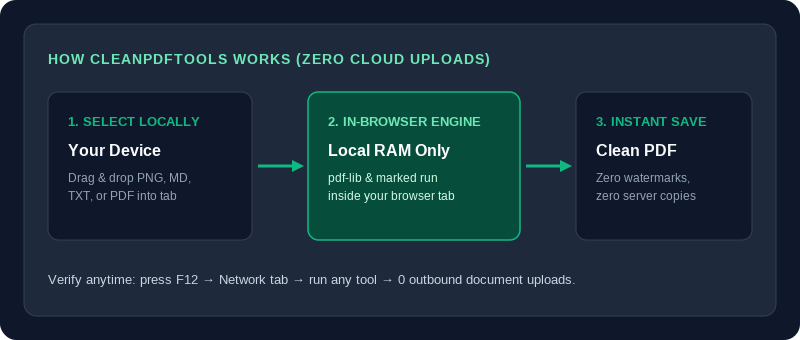
This tool renders your PDF pages locally with pdf.js, lets you draw, type, or upload a transparent signature on an HTML5 Canvas, drag and resize it across any page using mouse or touch Pointer Events, and embeds the crisp PNG straight into your PDF inside a background Web Worker using pdf-lib.
How to sign a PDF locally without uploading it
- Drop your PDF into the workbench above. Page 1 renders immediately in the left preview stage while your signing controls appear in the right panel.
- Create your signature using one of three modes: Draw freehand with mouse, trackpad, stylus, or finger; Type your name in a cursive or serif ink style; or Upload an existing PNG/JPG signature image (with an optional one-click white background remover).
- Navigate to the target page using the page switcher, click Place on Current Page, and drag the signature into position. Pull the corner resize handle to scale it cleanly to fit the signature line, and repeat if you need to initial multiple pages.
- Click Sign & Download PDF. Our background Worker embeds every placed signature at exact PDF point coordinates and downloads the finished file immediately.
Why transparency, Pointer Events, and /Rotate coordinate math matter
Basic PDF signers often paste an opaque white rectangle over your document, which blocks out the printed signature line and looks obviously pasted on. Here, drawn and typed signatures render onto an alpha-transparent high-DPI Canvas and auto-crop tightly around the ink strokes. If you upload a photo of your signature written on white paper, the built-in background cleaner converts near-white pixels to full transparency locally before embedding.
Placing a signature visually on a browser screen and saving it accurately into a PDF is trickier than it looks when a document contains rotated pages (/Rotate 90, 180, or 270) or non-zero CropBox offsets. Naive signers ignore page rotation and dump your signature sideways in the wrong corner. Our Worker stores your placement in normalized visual coordinates and transforms both the X/Y anchor point and image rotation angle back into the page native PDF coordinate system, so what you see in the preview matches the saved PDF.
All drag and resize interactions use standard browser Pointer Events with touch-action locking, so signing on an iPad, Android phone, or touchscreen laptop feels responsive without accidentally scrolling the page while you sign.
Best everyday uses for local browser PDF signing
- Signing residential leases, landlord notices, and move-in checklists without uploading personal address details.
- Adding your signature to W-9 forms, independent contractor agreements, and expense approvals before sending them to accounting.
- Placing initials on every page of a multi-page NDA or employment offer letter in one session.
- Signing school forms, medical consent sheets, or permission slips from a phone or tablet without printing and rescanning paper.
- Chaining straight into our Flatten PDF or Metadata Remover tools via local memory handoff so the final signed file is locked and clean before emailing.
Both your PDF and your handwritten signature image stay strictly inside your browser tab RAM. Turn off Wi-Fi after loading this page and you can still draw, place, and save a signed PDF.
Frequently Asked Questions
Is my signature or PDF stored on any server?
No. Your PDF is rendered with pdf.js and modified with pdf-lib inside a local Web Worker on your device. Neither your document nor your signature image is ever transmitted over the network.
Can I sign on multiple pages in the same PDF?
Yes. Use the page navigation buttons above the preview stage to move to any page, click Place on Current Page to drop your signature or initials there, and position each placement independently before exporting.
What if I uploaded a photo of my signature on white paper?
Switch to the Upload tab, select your PNG or JPG image, and leave the Remove white background option enabled. The tool strips near-white background pixels locally so only your ink strokes appear on the PDF.
Does a locally embedded signature have a DocuSign-style cryptographic audit trail?
No. This tool embeds a clean visual signature image directly into the PDF pages, which is accepted for most standard forms, leases, and everyday approvals. If a legal counterparty specifically requires a third-party timestamped audit certificate and multi-party workflow, use a hosted e-signature service like DocuSign or PandaDoc.
Can I lock the PDF after signing so form fields cannot be edited?
Yes. Right after downloading your signed PDF, click Flatten Forms in the Next Step bar to pass the signed file through local browser memory and lock all interactive form fields permanently.