JSON to PDF Formatter & Converter (Tree or Table View)
Validate and pretty-print JSON locally, then export a clean color-coded Tree PDF or structured Table PDF without uploading sensitive API payloads.
Developers, QA engineers, and security teams constantly need to attach API responses, audit logs, webhook payloads, or configuration snapshots to compliance tickets, client handoffs, and incident reports. Raw minified JSON pasted into an email or screenshot is unreadable, and uploading production payloads containing customer IDs or internal tokens to a random online converter is a non-starter.
This tool validates and formats JSON 100% locally inside your browser tab, then converts it into a clean, paginated PDF using the layout that fits your data shape best. Arrays of objects can render as a crisp repeating-header Table PDF, while deeply nested objects render as a structured, color-coded hierarchical Tree PDF with subtle indentation guides.
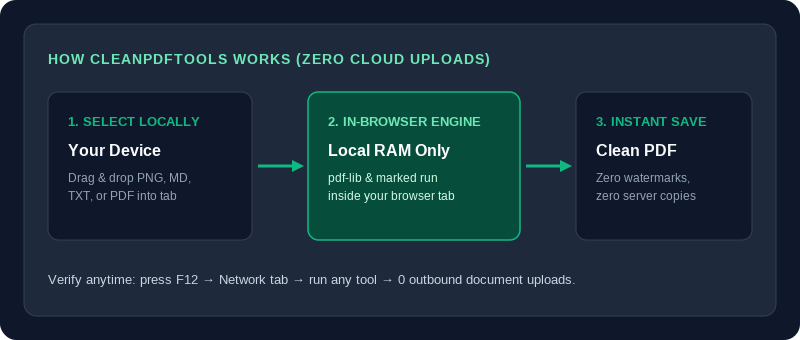
Because validation, pretty-printing, and PDF assembly all run inside your browser and background Web Worker, zero bytes ever touch a remote server. Standard ASCII and European JSON exports as lightweight selectable vector PDF, and Unicode or CJK payloads render cleanly at 2x DPI with zero extra font downloads.
How to convert JSON to a clean PDF locally
- Drop a .json file into the box above, click to browse your device, or paste raw JSON directly into the editor (or click Load Sample to try a realistic payload).
- Check the instant validation badge above the editor. If your JSON is minified, click Format JSON to pretty-print it with 2-space indentation; if there is a syntax error, the exact parser error appears immediately.
- Pick a Layout Mode: Auto chooses Table View for arrays of flat objects and Tree View for nested objects, or you can force Tree View or Table View manually.
- Adjust Paper Size (US Letter or A4), Orientation (Auto, Portrait, or Landscape), and Font Size (9 to 11 pt).
- Click Convert JSON to PDF to generate and download your paginated PDF immediately inside the browser.
How Auto layout detection, Tree View, and Table View work
Not all JSON has the same shape. An export of 40 user records or order items is a flat array of objects that reads much better as a structured table with column headers than as 800 lines of repeated braces. Conversely, a Kubernetes manifest, webhook payload, or nested configuration tree loses context if forced into a flat grid.
When Layout Mode is set to Auto, our converter inspects the parsed JSON AST. If the top-level value is a non-empty array whose elements are plain objects, it collects the union of all object keys in first-seen order and routes the data to our paginated table engine (repeating dark headers on every page, proportional column widths, and zebra-striped rows). If the top-level value is a nested object or mixed structure, it builds a structured tree walk that annotates container sizes such as "{ (5 keys)" and "[ (3 items)" alongside clean indentation levels.
In Tree View, every data type receives distinct, print-safe color coding: bold dark slate for property keys, emerald green for strings, cobalt blue for numbers, violet for booleans, and muted gray for null values and structural braces. Thin vertical indentation guides run along each depth level so you can trace nested blocks across page breaks without counting spaces by hand.
All vector PDF generation runs off the main thread inside pdf-js.worker.ts using Courier and Helvetica StandardFonts, keeping the UI responsive even on large payloads and returning the finished PDF via Transferable ArrayBuffer. When the JSON contains CJK characters, emojis, or other non-WinAnsi Unicode text, the controller automatically renders the exact same color-coded tree or paginated table at 2x DPI using local system Unicode fonts before assembling the PDF.
Where local JSON to PDF export saves time
- Archiving API responses, SOC 2 / ISO 27001 audit evidence, or webhook payloads as immutable PDF attachments without leaking internal tokens to cloud converters.
- Turning JSON arrays returned by REST or GraphQL endpoints into readable client-facing tables without writing a throwaway Python or Node script.
- Documenting complex configuration files, feature flag snapshots, or OpenAPI schema fragments with syntax-colored tree indentation for architecture reviews.
- Converting multilingual JSON localization files (including Chinese, Japanese, Korean, German, or French strings) into clean printable review sheets.
- Chaining directly into Add Watermark (e.g., stamping "INTERNAL AUDIT") or Compress PDF via local IndexedDB handoff right after export.
Production API payloads and config dumps stay strictly inside local browser memory. Verify 0 KB outbound network traffic anytime in DevTools (F12 -> Network tab).
Frequently Asked Questions
What is the difference between Auto, Tree View, and Table View?
Auto inspects your JSON structure: arrays of objects automatically render as a paginated Table, while nested objects render as a color-coded hierarchical Tree. You can also force either Tree View or Table View manually.
What happens if my JSON has a syntax error like a trailing comma?
The built-in local validator checks your input as you type and highlights exact JSON.parse syntax errors before export, so you can fix missing quotes or trailing commas right in the editor.
How does Table View handle nested objects inside an array?
Top-level keys become table columns, and any nested object or array inside a cell is cleanly serialized as compact JSON text with automatic multi-line cell wrapping.
Does JSON to PDF support Chinese, Japanese, Korean, or Emoji values?
Yes. Standard English and European JSON renders as lightweight selectable vector PDF. When CJK or other non-WinAnsi Unicode characters are present, the converter automatically uses our 2x DPI local Unicode renderer so every glyph exports cleanly.
Is my JSON payload ever sent to a remote server?
Never. JSON validation, formatting, layout calculation, and PDF assembly all run 100% locally inside your browser tab and background Web Worker.