Compare PDF Files (100% Local Text Diff)
Drop an original PDF and a revised PDF to spot every added, removed, or edited phrase locally with side-by-side and unified diff views—zero server uploads.
Local text diff catches wording edits privately without uploading drafts. If your team negotiates contracts across multiple external reviewers and needs automated redline approval plus binding e-signatures, consider a full contract suite.
Affiliate disclosure: External partner links may earn us a commission at no extra cost to you. CleanPDFTools web utilities remain free.
When a counterparty emails back "Contract_v2_final.pdf" without Word Track Changes turned on, spotting a quiet edit to a payment term, renewal window, or liability cap by eye is risky. Uploading both versions of an unsigned agreement, M&A term sheet, or HR offer letter to a random cloud PDF comparison site introduces a serious confidentiality leak.
Enterprise tools like Adobe Acrobat Pro Compare Files and Litera Compare are genuinely better when you need pixel-by-pixel visual overlay diffing on CAD drawings, layout shifts, or scanned image PDFs, and they are built for law firms that pay annual per-seat licenses. When you are comparing two text-based versions of a contract, policy, manuscript, or spec sheet, a fast local text diff inside your browser catches every wording change in seconds without a subscription or cloud upload.
This tool extracts text from both PDFs locally using pdf.js, runs a line-level and word-level Longest Common Subsequence (LCS) diff algorithm directly inside your browser tab, highlights exact insertions and deletions, and lets you switch between Side-by-Side and Unified views or export a clean Markdown diff summary.
How to compare two PDF files locally
- Drop the original baseline PDF into the Document A slot on the left, and drop the revised PDF into the Document B slot on the right.
- Click Compare PDFs. Your browser extracts the text layer from both files locally with pdf.js and computes exact line and word differences.
- Review the summary metrics bar (added lines, removed lines, unchanged lines, and overall similarity percentage). Toggle Show Changes Only to jump straight to edits, or enable Ignore Whitespace to filter out harmless reflow spacing.
- Switch between Side-by-Side and Unified diff layouts as needed, then click Export Diff Summary (.md) or Copy Summary to share your review notes.
How local line-and-word diffing works under the hood
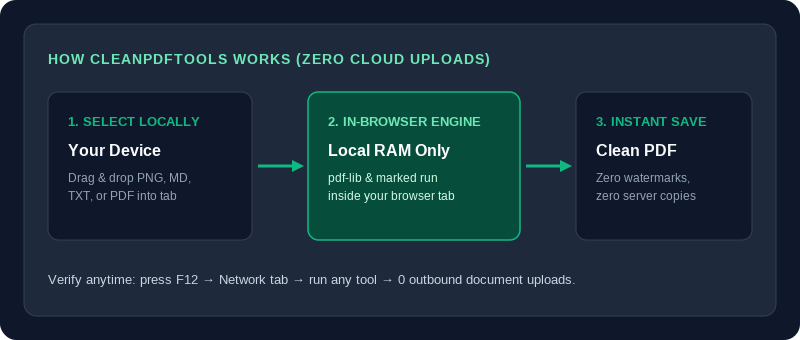
First, our extractor reads each page of Document A and Document B using pdfjs-dist, reconstructing visual reading lines from text item X/Y coordinates so line breaks match how a human reads the page rather than raw internal PDF stream order. Each extracted line retains its source page number so you can locate any change immediately in the original document.
Next, a pure TypeScript Longest Common Subsequence (LCS) diff engine aligns the two line arrays to classify every line as unchanged, removed, or added. Whenever a removed line sits directly opposite an added line in a modified block, a second-pass word-level diff highlights the exact changed tokens in red (deleted) and green (inserted), so a single changed dollar figure or date stands out immediately inside a long legal clause.
Every diff row is constructed strictly with safe DOM text nodes (createElement and textContent, never raw HTML injection), keeping your browser safe even if a PDF contains angle brackets, XML snippets, or code samples. Note that because comparison operates on the embedded text layer, scanned image-only PDFs without OCR text cannot be diffed here.
Where local PDF comparison catches costly mistakes
- Auditing redlined or quietly edited client contracts, NDAs, and commercial leases before signing.
- Verifying that a revised invoice, statement of work (SOW), or pricing sheet only changed the agreed line items.
- Checking regulatory policies, employee handbooks, or terms of service updates between annual releases.
- Reviewing proofreading edits between two exported drafts of an academic paper, technical manual, or ebook.
- Generating a clean Markdown diff report to paste straight into an email, Jira ticket, or Slack thread without uploading source PDFs.
Contracts and legal drafts are the most sensitive files you handle. Verify in DevTools (F12 → Network) that zero bytes from Document A or Document B are ever uploaded.
Frequently Asked Questions
Are either of my two PDF files uploaded when I run a comparison?
No. Both PDFs are read and diffed 100% locally inside your browser tab memory. Neither document ever leaves your device.
Can this tool highlight a single changed number or word inside a long paragraph?
Yes. After aligning lines across both PDFs, the engine runs a word-level diff on modified line pairs so specific inserted or deleted words and numbers are highlighted inline.
What is the difference between Side-by-Side and Unified view?
Side-by-Side view displays Document A on the left and Document B on the right with aligned rows, which is easiest on desktop monitors. Unified view stacks removed and added lines sequentially like a Git diff, which is easier to read on narrow screens and phones.
Can it compare scanned PDFs or visual layout/color changes?
This tool compares the embedded text layer of both PDFs. If a file is a flat image scan with no selectable text, or if you need to inspect pixel-level graphic shifts, you will need an OCR step or a visual pixel-overlay diff tool.
Can I export the list of differences for my team?
Yes. Click Export Diff Summary (.md) to download a structured Markdown report containing file names, similarity statistics, and every added or removed line with page numbers, or copy it straight to your clipboard.