Add Watermark to PDF (With Real-Time Local Preview)
Protect IDs, contracts, drafts, and sample portfolios with custom diagonal or tiled watermarks. Preview placement live on your actual PDF pages before saving—zero uploads.
Local watermarking stamps drafts and IDs privately. Once a client is ready to approve and sign the final version with a verifiable audit trail, dedicated e-signature software replaces manual PDF email chains.
Affiliate disclosure: External partner links may earn us a commission at no extra cost to you. CleanPDFTools web utilities remain free.
People watermark PDFs most often when sending their most sensitive files: a passport scan for a landlord ("FOR RENTAL APPLICATION ONLY"), a draft contract for a prospective client ("DRAFT — DO NOT EXECUTE"), or a paid design portfolio ("SAMPLE — DO NOT COPY"). Uploading an unwatermarked ID scan or confidential agreement to a remote server just to stamp a protective label on it creates the exact exposure you are trying to avoid.
Desktop tools like Adobe Acrobat Pro Watermark are strong if you need batch folder automation across hundreds of PDFs or custom dynamic Bates variables. For day-to-day documents where you want to visually verify opacity, angle, font size, and tiling density before sending a file, a real-time browser workbench gets the job done in ten seconds with zero login and zero cloud retention.
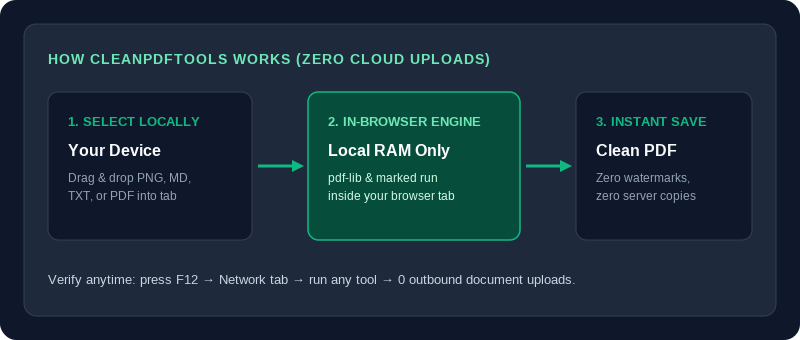
Our watermark workbench renders your actual PDF pages locally via pdf.js in a 70/30 split layout, overlays a live canvas preview that updates on every slider movement, and then embeds the final watermark in a dedicated Web Worker using pdf-lib.
How to add a watermark to a PDF locally
- Drop your PDF into the workbench above. Page 1 renders immediately on the left preview canvas while all controls appear in the sticky right panel.
- Type your custom watermark text (or click a quick preset like CONFIDENTIAL, DRAFT, FOR VERIFICATION ONLY, or DO NOT COPY). Both Latin text and non-ASCII scripts (Chinese, Japanese, Korean, European accents) are supported.
- Choose Single Center stamp, Tiled Grid (repeats cleanly across the entire page for ID protection), or any corner, then fine-tune font size, opacity, rotation angle, color, and page range while watching the live preview.
- Click Apply Watermark & Download. The background Web Worker stamps every selected page and saves your protected PDF locally.
How live preview and hybrid vector/Unicode stamping work
Many simple watermark tools force you to guess coordinates blindly, download the file, open it in another app, realize the font was too dark or clipped at the edge, and start over. By pairing pdf.js page rendering with a synchronized overlay canvas scaled to the exact PDF point dimensions of the current page, what you see in the preview matches the exported PDF.
When you click Apply, your PDF bytes are transferred via Transferable ArrayBuffer to pdf-js.worker.ts. For standard ASCII and WinAnsi text, the worker embeds Helvetica Bold vector text directly into each page content stream with your chosen RGB color, rotation angle, and PDF graphics-state opacity. Vector watermarks stay razor-sharp at any zoom level and add almost zero kilobytes to file size.
If your watermark includes Unicode characters outside WinAnsi (such as Chinese, Japanese, or Korean labels like "仅供办理业务使用"), the controller automatically renders a crisp 2x high-DPI transparent PNG stamp in local canvas memory and transfers it to the worker to embed cleanly across your chosen pages and tile pattern. Remember that standard PDF watermarks are meant as a clear visual deterrent; for maximum resistance against casual editing, chain the output into Flatten PDF or Compress PDF right from the result card.
Common privacy and business uses for PDF watermarks
- Stamping "FOR VERIFICATION ONLY — [Company] [Date]" across passport, driver license, or utility bill scans before KYC checks.
- Marking draft proposals, architectural blueprints, and legal redlines as "DRAFT" or "CONFIDENTIAL" before external review.
- Applying a full-page diagonal Tiled Grid watermark across sample invoices, paid ebooks, or freelance deliverables prior to final payment.
- Labeling internal board decks, financial models, or HR handbooks with "INTERNAL USE ONLY" without uploading them to a cloud PDF editor.
- Adding corner status labels on specific page ranges (for example, pages 2-5 only) while leaving cover pages clean.
Never upload an unwatermarked ID scan or contract to an unknown server. Open DevTools (F12 -> Network) to confirm your file stays 100% inside browser memory from preview to final download.
Frequently Asked Questions
Does the watermark tool support tiled watermarks across the whole page?
Yes. Select Tiled Grid under Placement to repeat your angled watermark evenly across the entire page, which makes it much harder for someone to crop out a single corner label on an ID scan.
Can I use non-English or Chinese/Japanese/Korean watermark text?
Yes. Standard English and Western European text is embedded as crisp vector PDF text, while CJK and extended Unicode text is automatically rendered as a high-DPI transparent PNG stamp so every character appears cleanly without "?" boxes.
Can I watermark only specific pages instead of the whole PDF?
Yes. Enter any range such as "1, 3-5" in the Pages field, or leave it as "all" to stamp every page.
Does adding a watermark upload my PDF anywhere?
No. Both the live pdf.js page preview and the pdf-lib stamping worker execute locally inside your browser tab.
Will the watermark block the underlying text from being readable?
You control the opacity slider from 5% to 90% and see the exact readability in the live preview before exporting. Setting opacity around 20% to 30% keeps underlying text legible while remaining clearly visible.